Setup guide
How to add Vimetry to your store.
Vimetry is a widget on your product pages, not a separate app. Setup is done together with us: there is no self sign-up, and nothing turns on automatically.
- 1
Contact us
Send your store address, the bags you want to cover, and anything we should know about your product pages.
- 2
We approve your domain and products
We review your store and product images, then approve your domain and the specific products that should show the simulation. You do not need to do anything in this step.
- 3
Add one script line to your product pages
Paste this line into your product page template, for example just before the closing
</body>tag. It adds no visible text of its own.HTML<script async src="https://widget.vimetry.io/v1/bag-visualizer-loader.js"></script>Important: adding the script on its own does not switch the service on. The size button only appears on your domain after we have approved your store and the relevant products. - 4
This is how it works on the page
On approved product pages, a size button appears near the product details. The script reads the product name, main image and dimensions from the page. When a shopper taps the button, the simulation opens with three tabs: height, what fits inside, and comparison with other bags from your store.
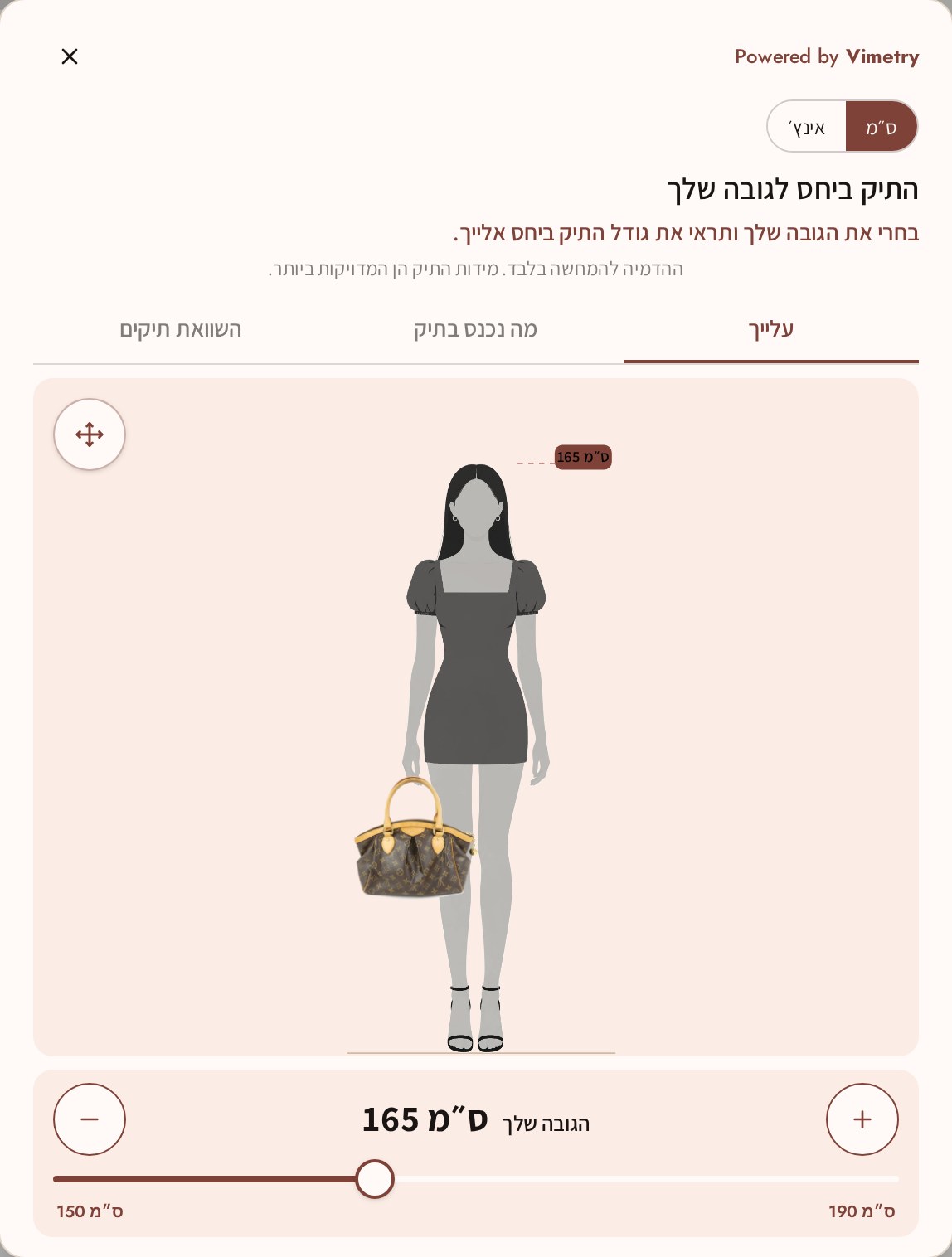
Live example on DE ARCHIVEHeight tab
Good to know
- Products that are not approved simply show no button — nothing breaks.
- The widget follows your store's language: English or Hebrew.
- Shoppers do not need an account, and neither do you.